company logo

Helpcenter

Go to ovos play
All collectionsGeneral Information about the ProductTemplate Catalog

Template Catalog

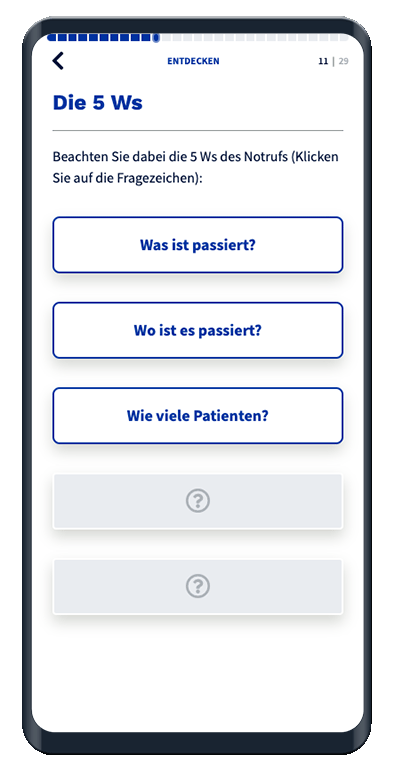
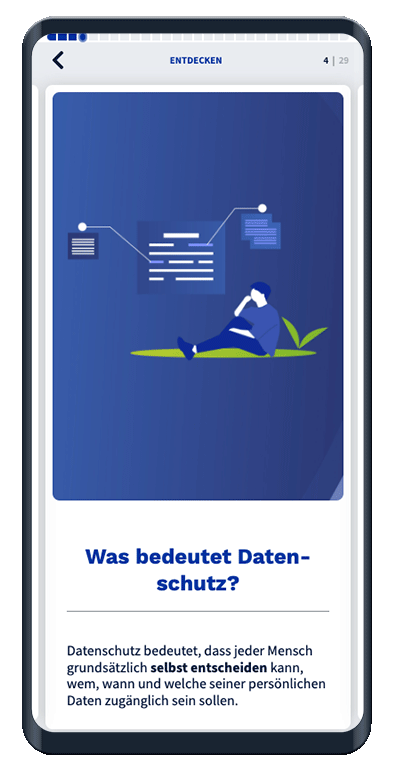
ovos play offers you 12 content templates, 7 question templates, and 4 survey templates.

You can also find an interactive demo of all card templates in our demo app.

Descriptions and functions of the individual templates are available in the knowledge base. The cards listed below are each linked to the article where you’ll find more details about creating the cards.
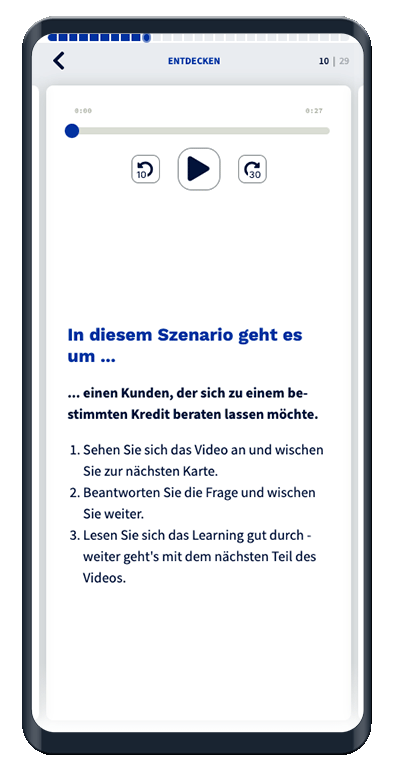
The Content Cards

Intro Card

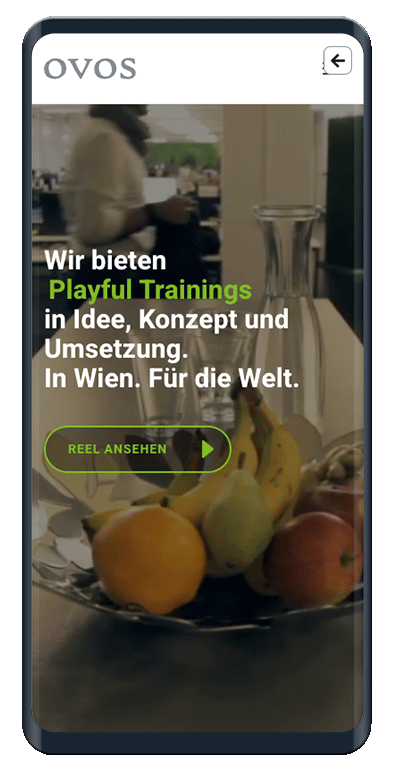
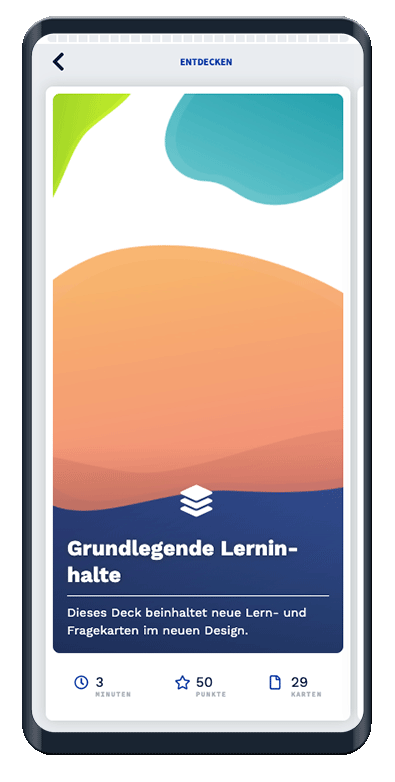
The title card shows a background image with a title and subtitle.

Text

The text card shows the added text and an optional audio player.

Text + Expand

The Text+Expand card shows the added text and interactive fields with text to expand.

Text + Image

The Text+Image card shows the added image with the added text

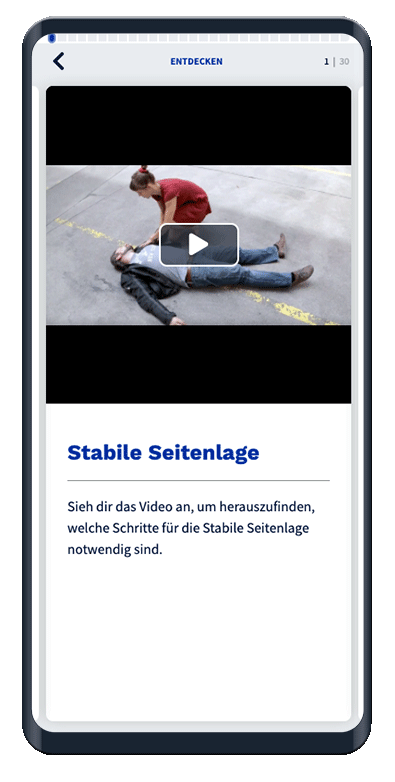
Text + Video

The Text+Video card shows the added video with the added text.

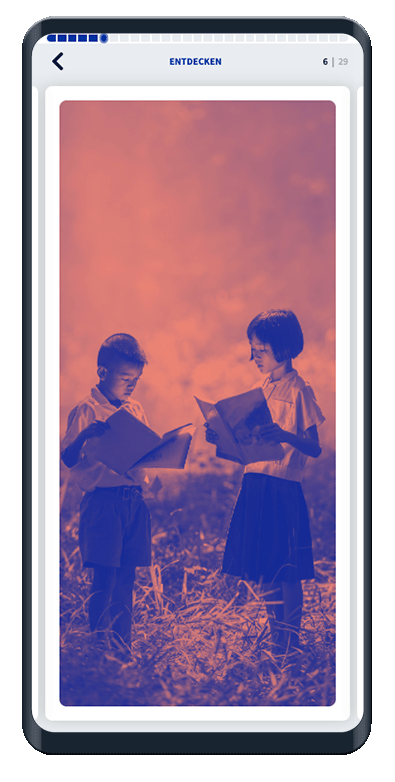
Image

The image template shows the added image.

Video

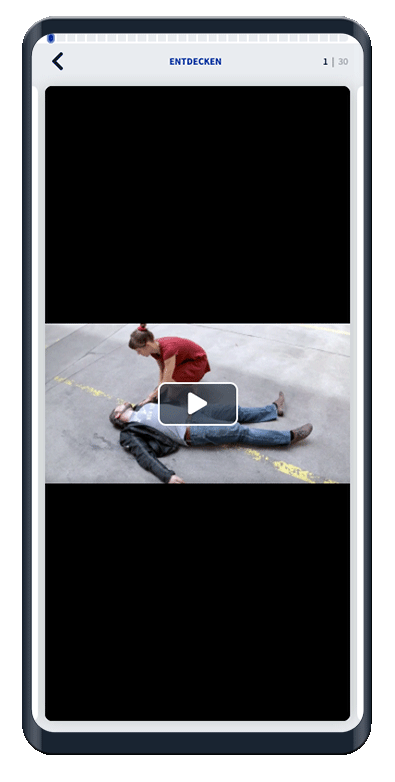
The video template shows the added video.

Quote

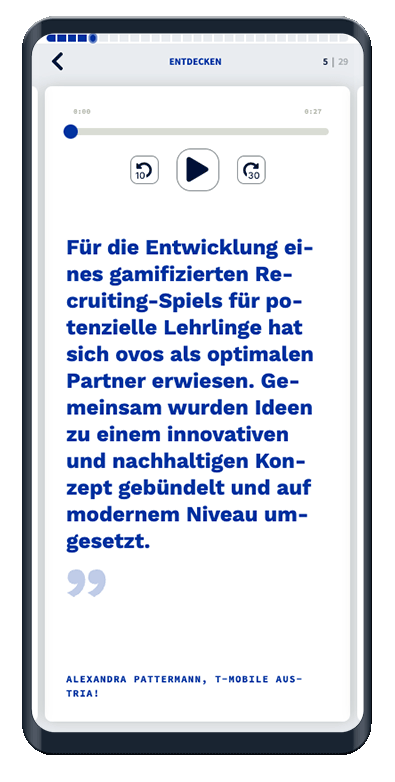
The quote card shows the added quote with caption and optional audio player.

Iframe

The Iframe card shows the embedded website.

Scene

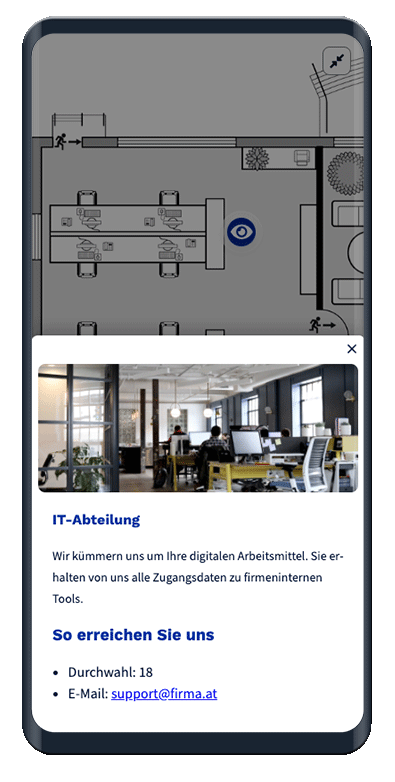
The scene card displays a horizontally scrollable scene image with placed info boxes on it.

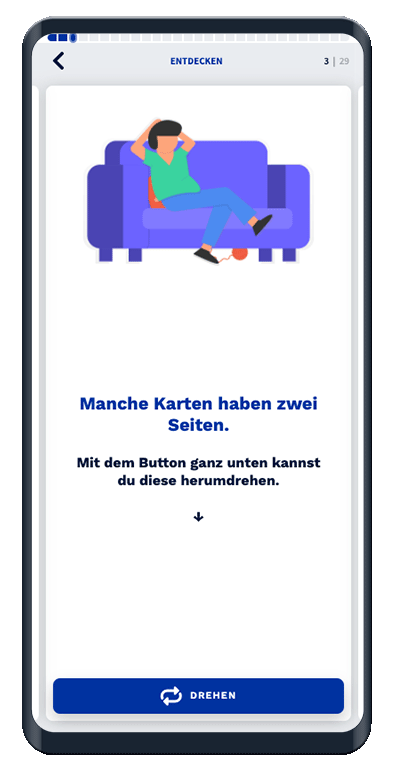
Flip

The flip card shows the added image with text and has a button to flip over the card.

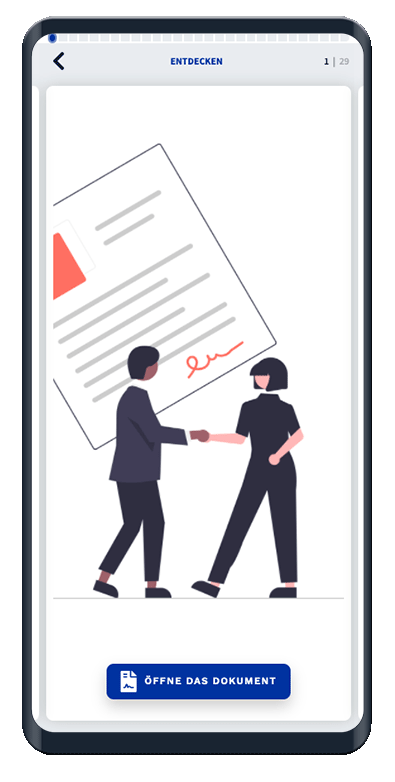
Document

The document card shows a background image and a button to open the document.

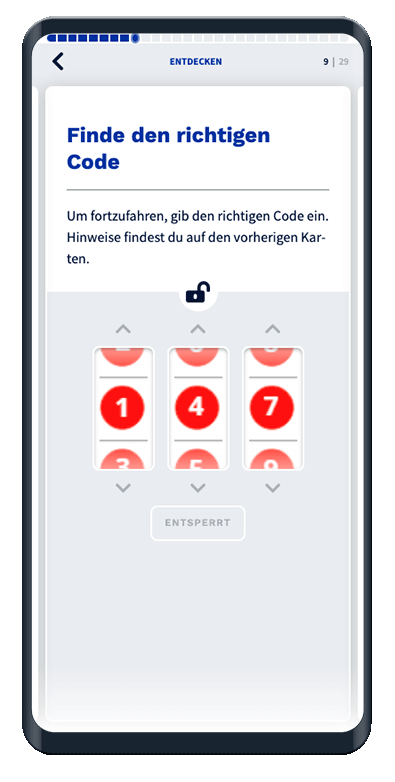
Task: Code

The code card shows three answer slots to enter your answer.

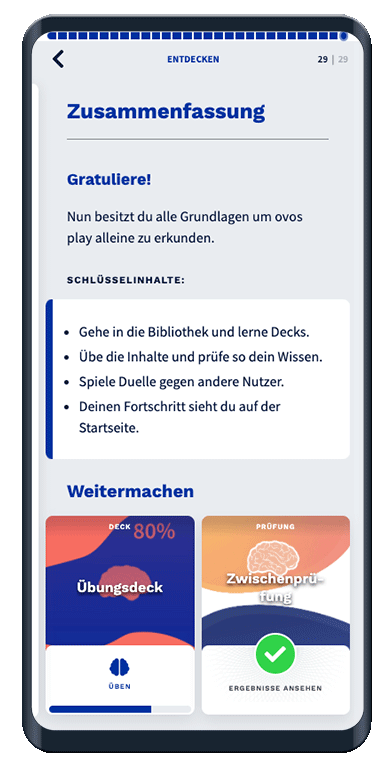
Summary

The summary shows the added text with highlighted key contents and added decks as suggestions.

The Task Cards

Task: Single & Multiple Choice Text

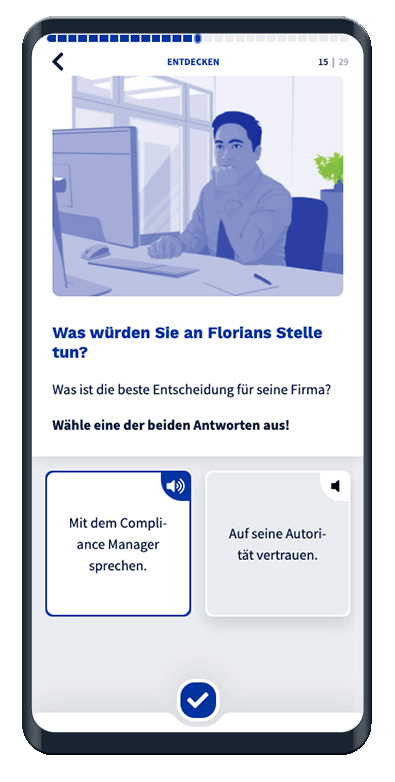
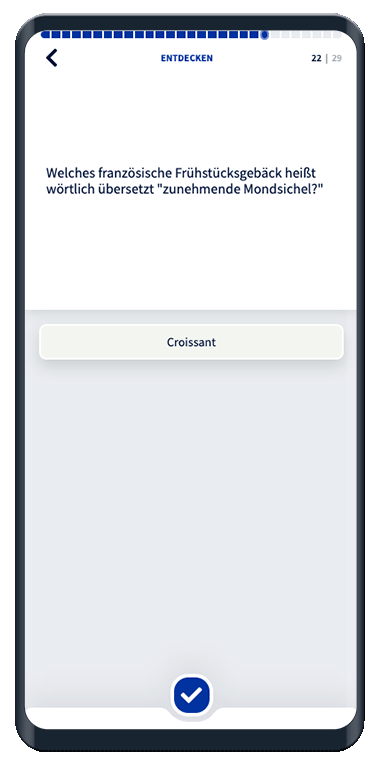
The choice card shows the added question with the answer options as selection buttons.

Task: Single & Multiple Choice Image

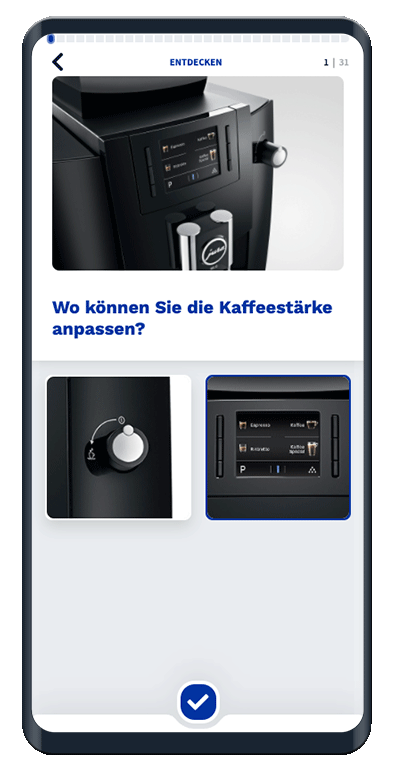
The choice image card shows the added question with the answer options as selection buttons with images.

Task: Fact or Fiction

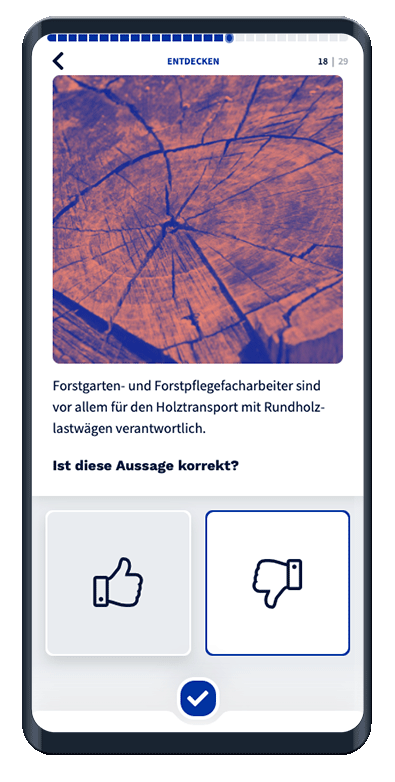
The fact-fiction card shows the question with selection buttons and indicates correct and incorrect.

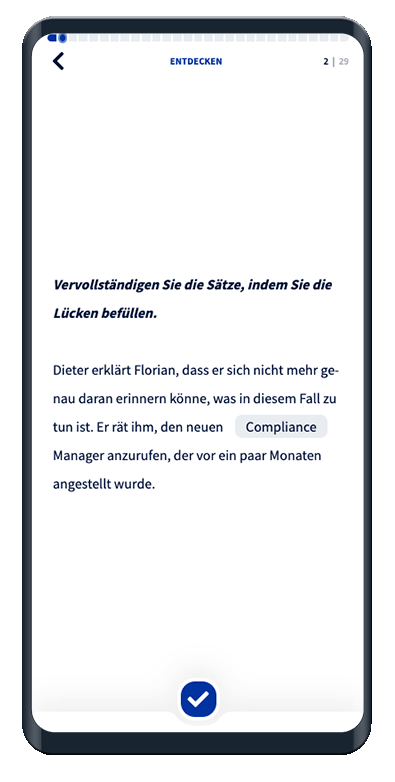
Task: Fill-in-the-blank - selection
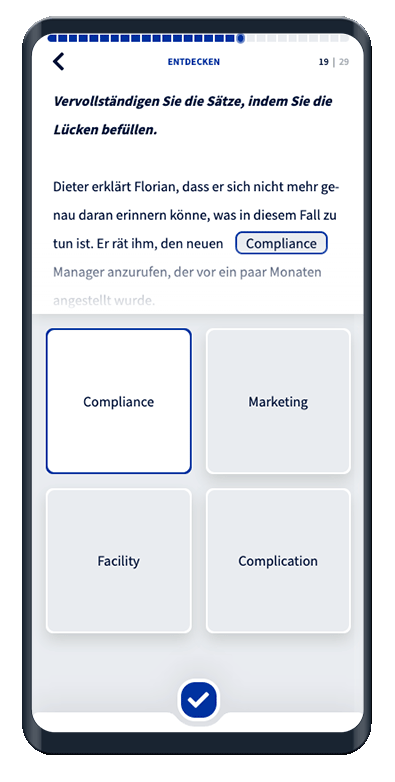
The fill-in-the-blank selection card shows a fill-in-the-blank text with placeholders and possible answers for the blank as selection buttons.

Task: Fill-in-the-blank - text field

The fill-in-the-blank input card shows a fill-in-the-blank text with placeholders and a text input field for the blank.

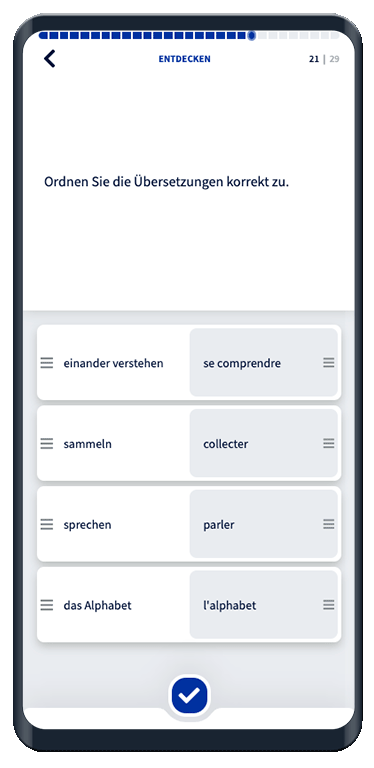
Task: Dual Assignment

The dual assignment card shows the question and the answers that need to be sorted in two columns.

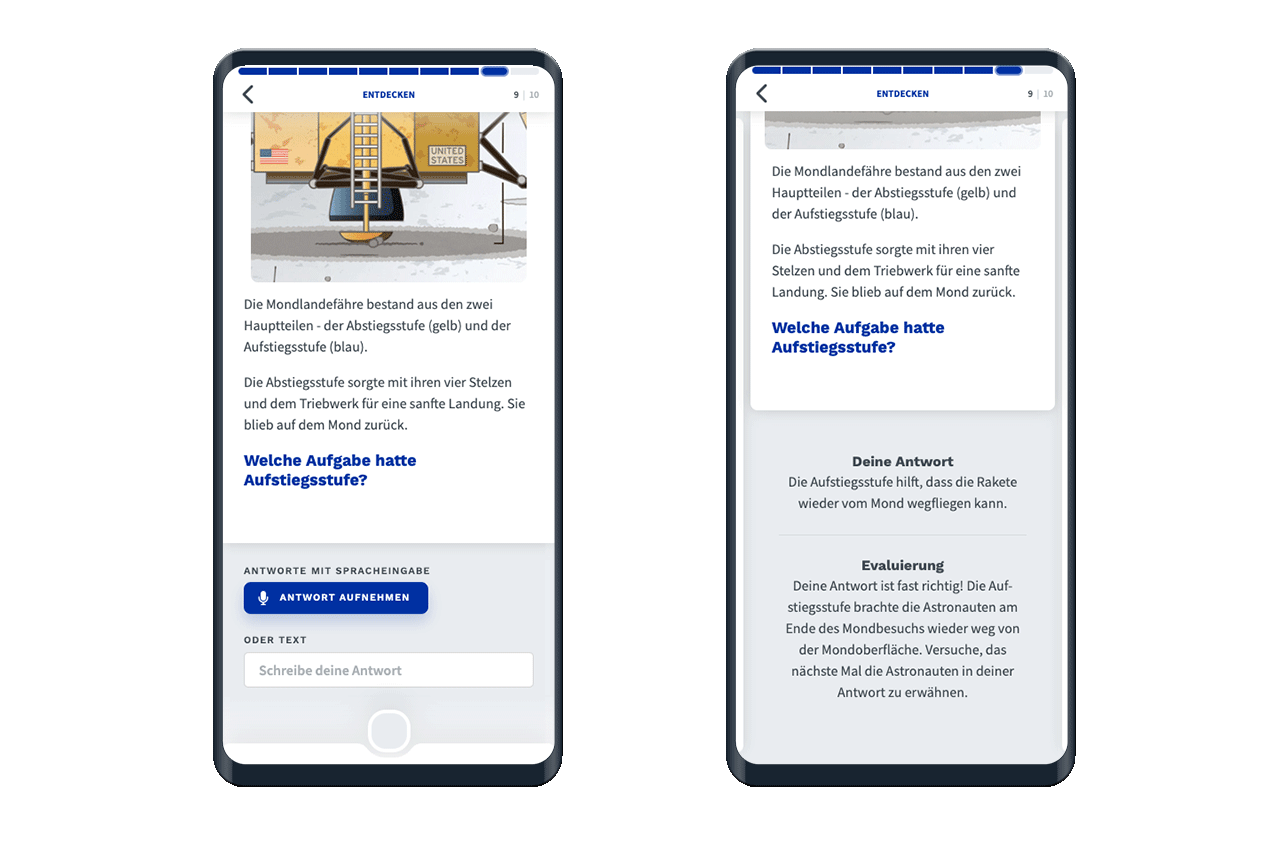
Task: Text Input Field

The text input card shows the question and the text input field for the answer.


Task: Answer Evaluation with AI

Only available with the AI module
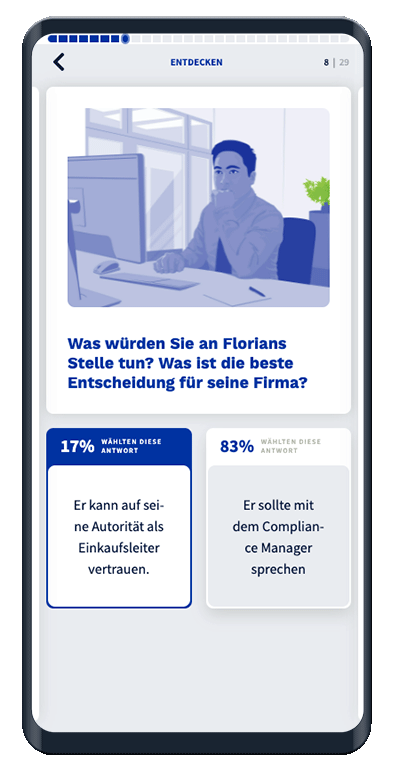

The survey cards

Survey: Single & Multiple Choice

The choice survey shows the question and the possible answers as selection buttons with the percentage display of the answer distribution.

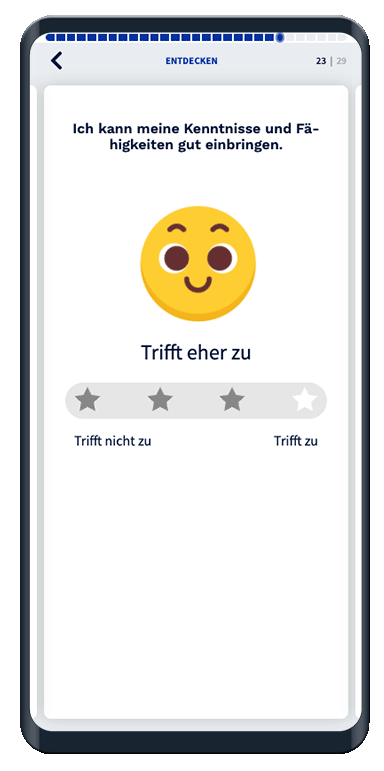
Survey: Star

The star survey shows the question with the star rating to assign the answer.

Survey: Scale

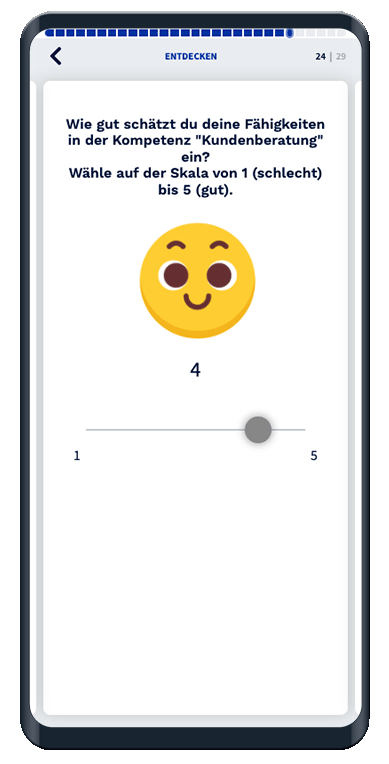
The scale survey shows the question and the scale for picking your answer.

Survey: Text Input Field

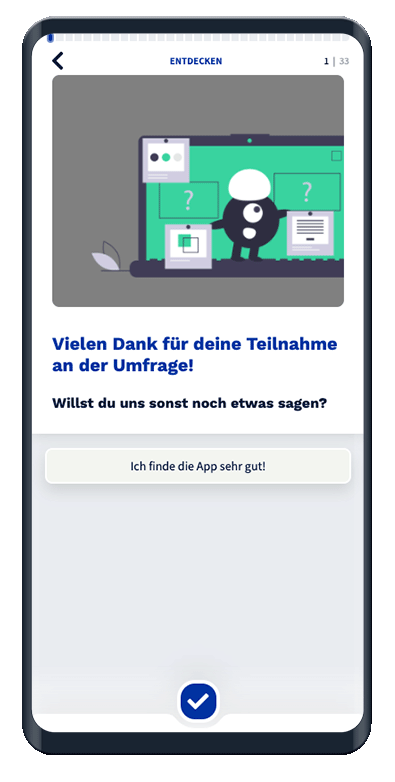
The text input survey shows the question and a text field for your answer.

Did this answer your question?
😞
😐
😁