The multilingual functionality is currently in a BETA version. If you'd like to use the multilingual option in advance, contact your Customer Success Manager at ovos.
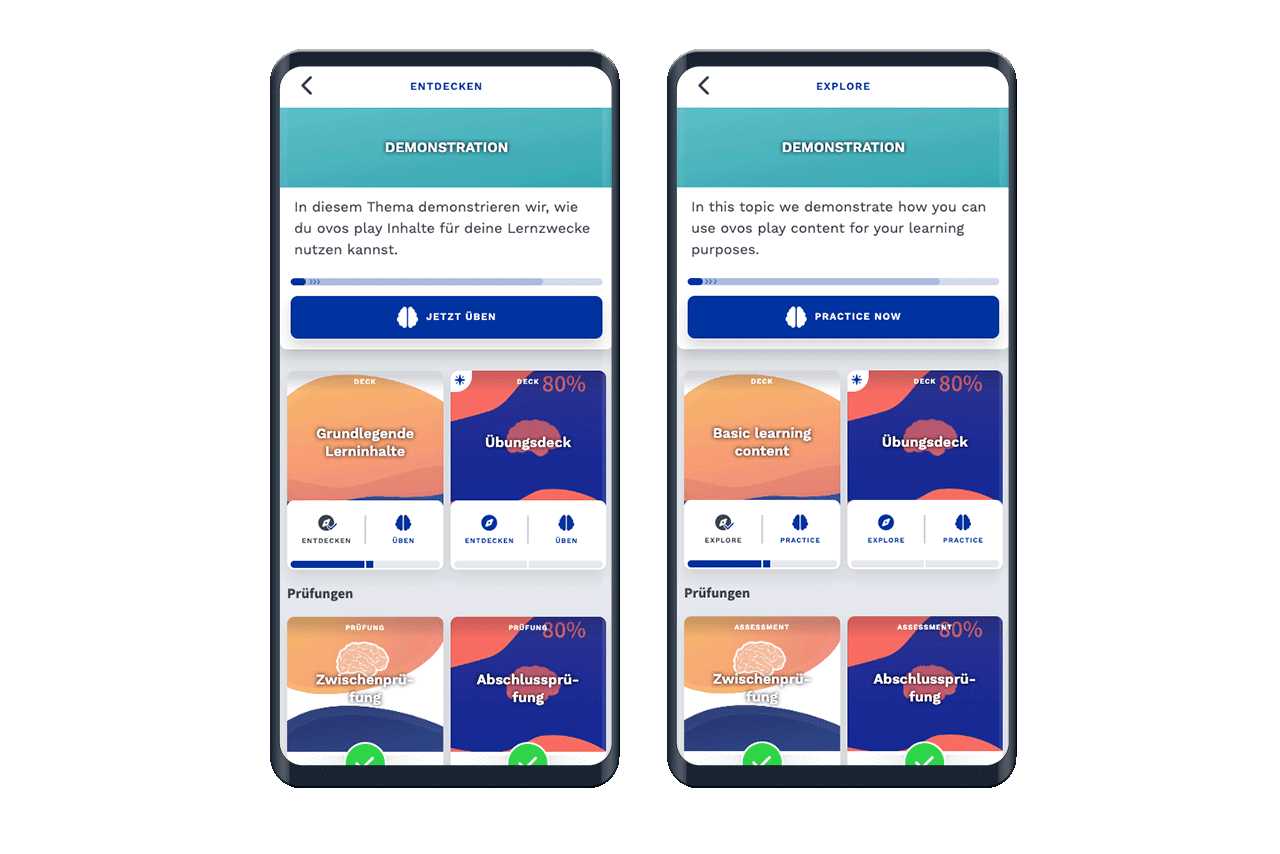
Existing or new learning content can be easily translated with the new beta. The library element or card remains the same, and the translation does not create an additional entry or a link through a content package.
To translate a learning content, the article must first be created and saved in the original language. If you already have existing learning content, it is already saved in the original language. When you save new learning content, it will always be saved in the original language.

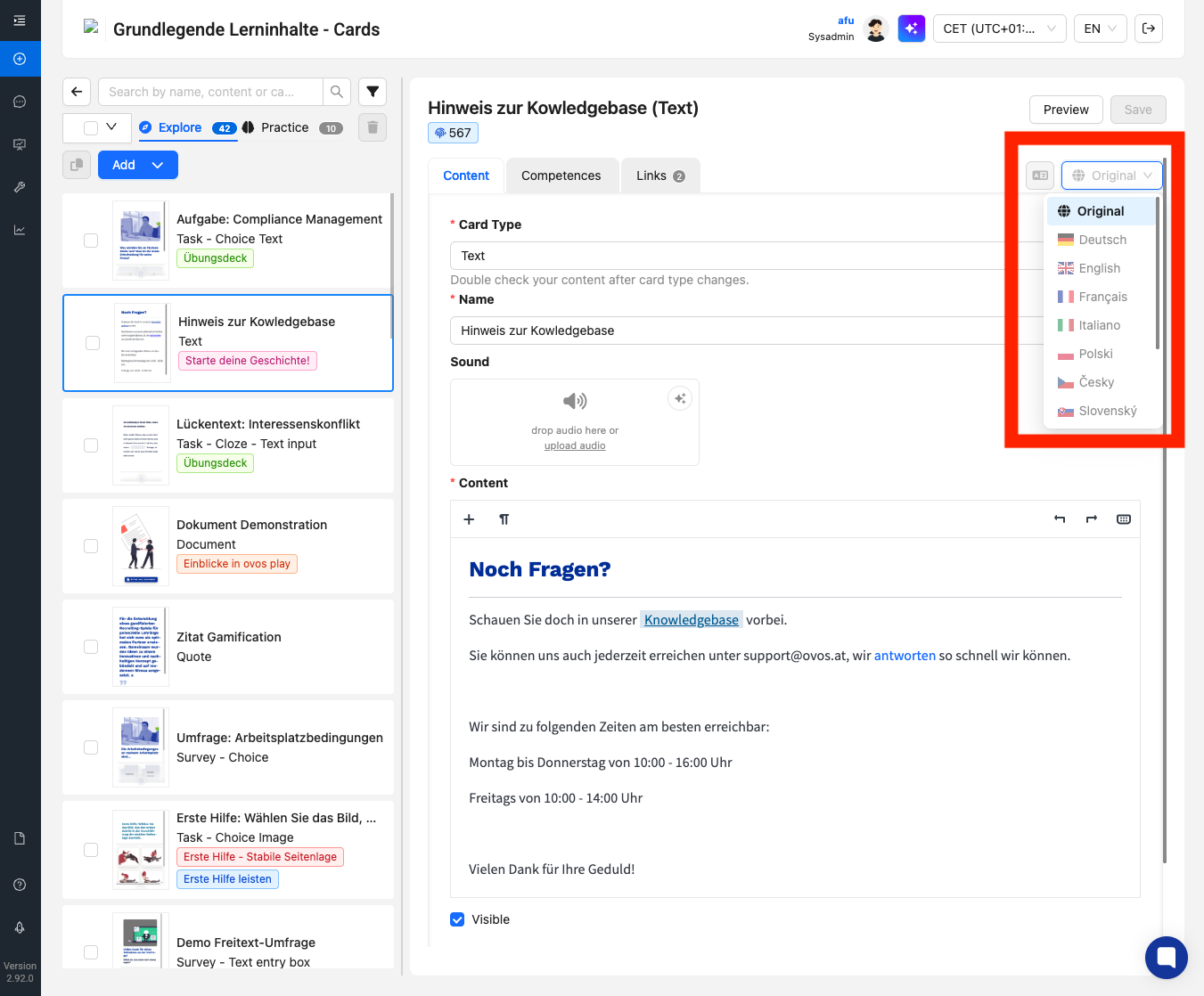
To add a translation, you'll find a language selection field in the top right. When you open the dropdown, you'll see all the languages that are active for your instance.
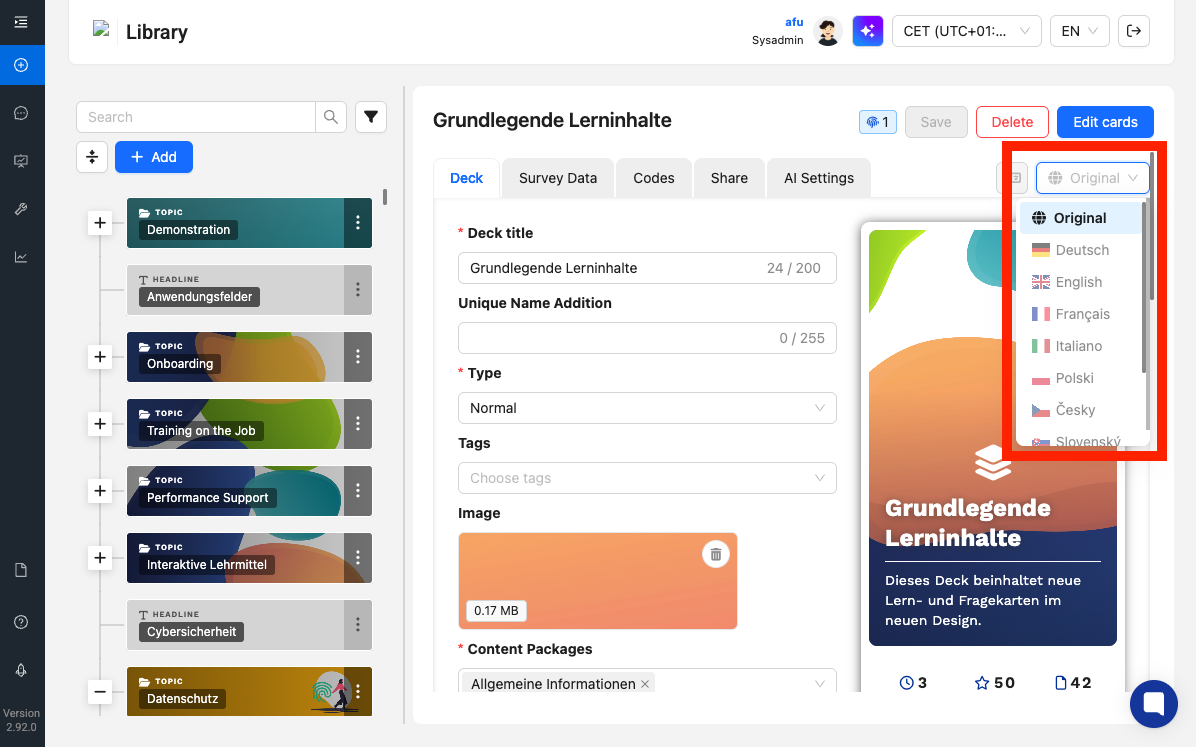
Now you can choose the language into which you want to translate the learning content. For example, click "English" to add an English version.
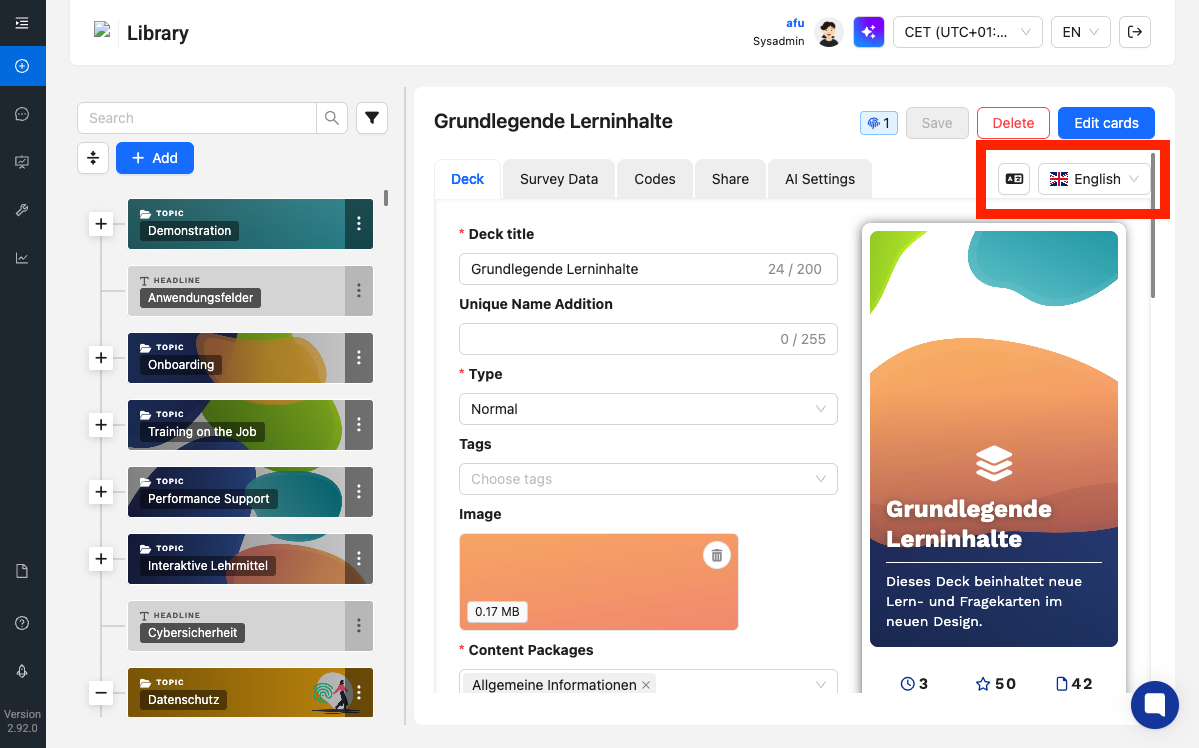
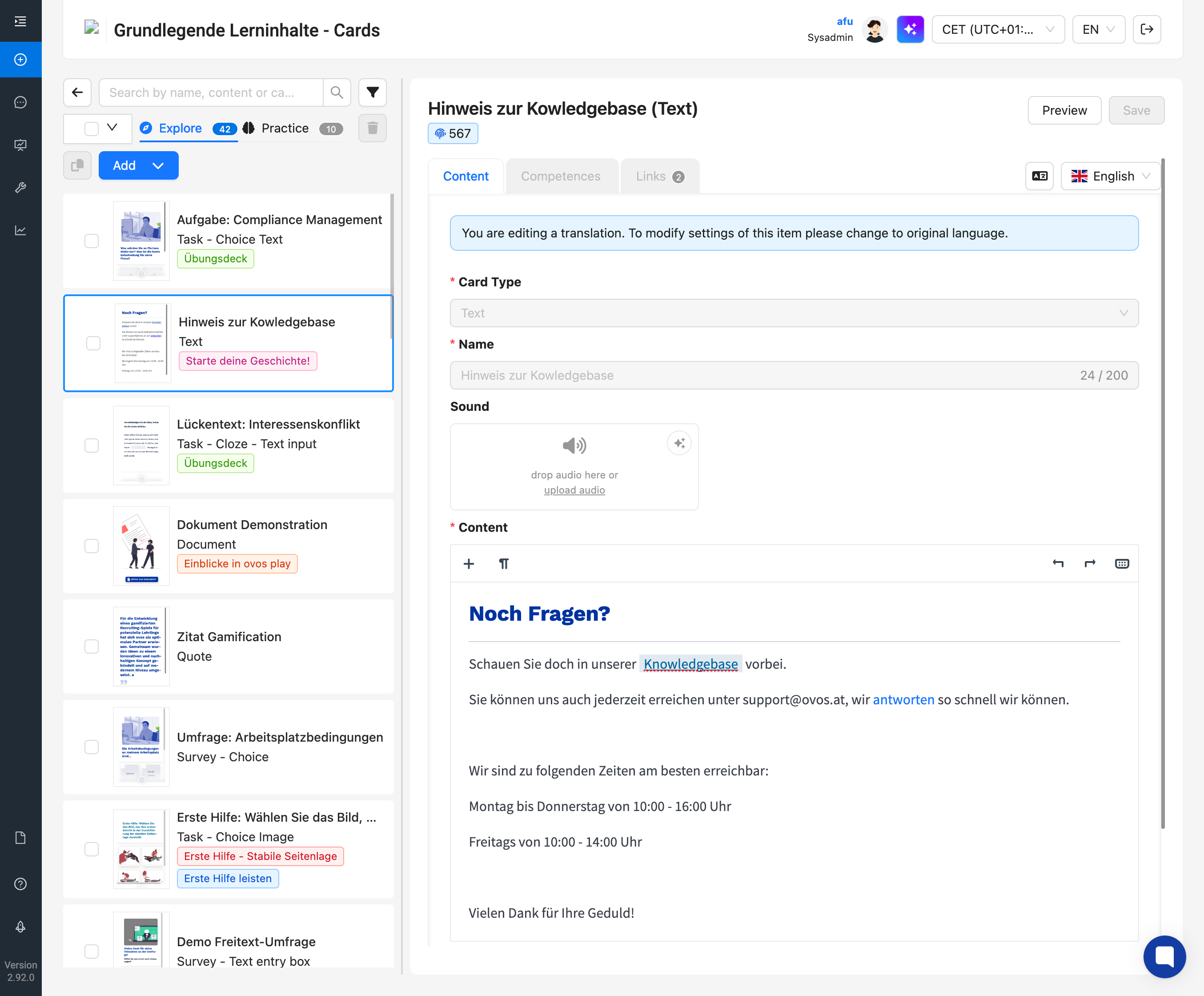
In the translated version, the content of the original will be copied over first. You can freely edit the texts now. All fields that don't contain text, such as dates or linked learning content, will be carried over and cannot be edited in the translation.

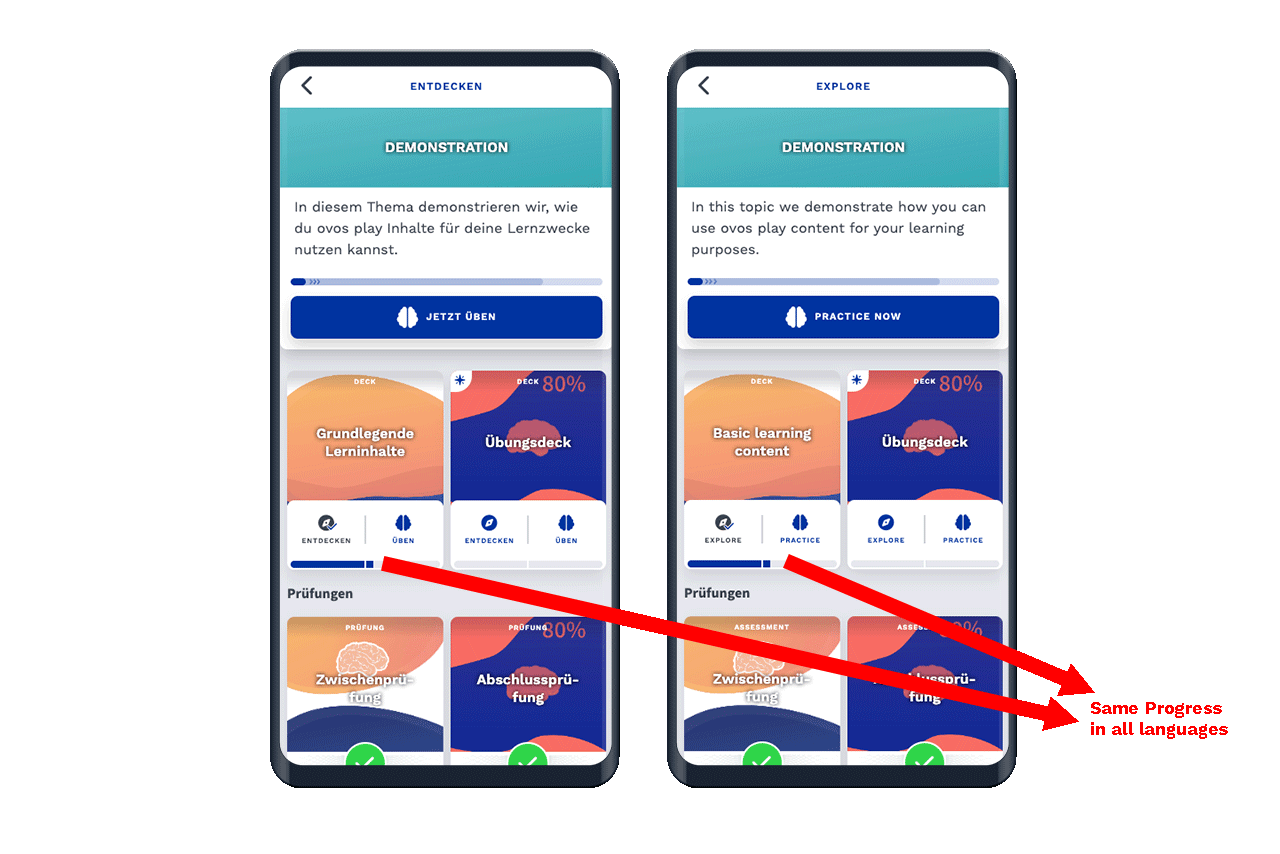
With the registered translation, learners can switch the language while keeping all their progress.
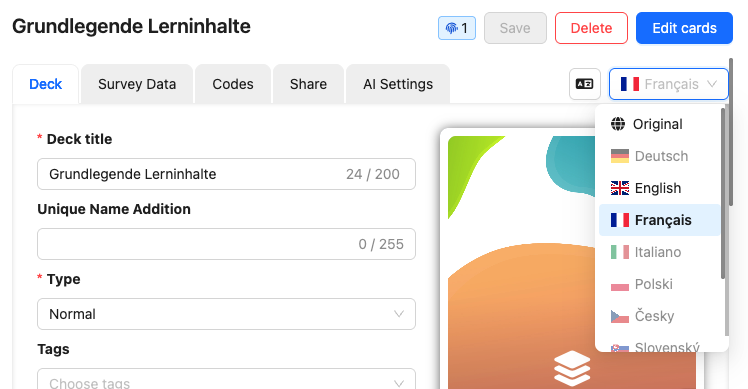
You can now select any other language with the language selection field and translate it. In the selection field, you’ll see that English is now written in black. This means a translation has already been added and saved. If the language is also bold and highlighted in blue, then this language is currently selected. If the language is highlighted in gray, no translation has been added yet.
If the DeepL module is activated for your instance, you can also have the texts of the original automatically translated via DeepL. Click on Translate into selected language to do this.
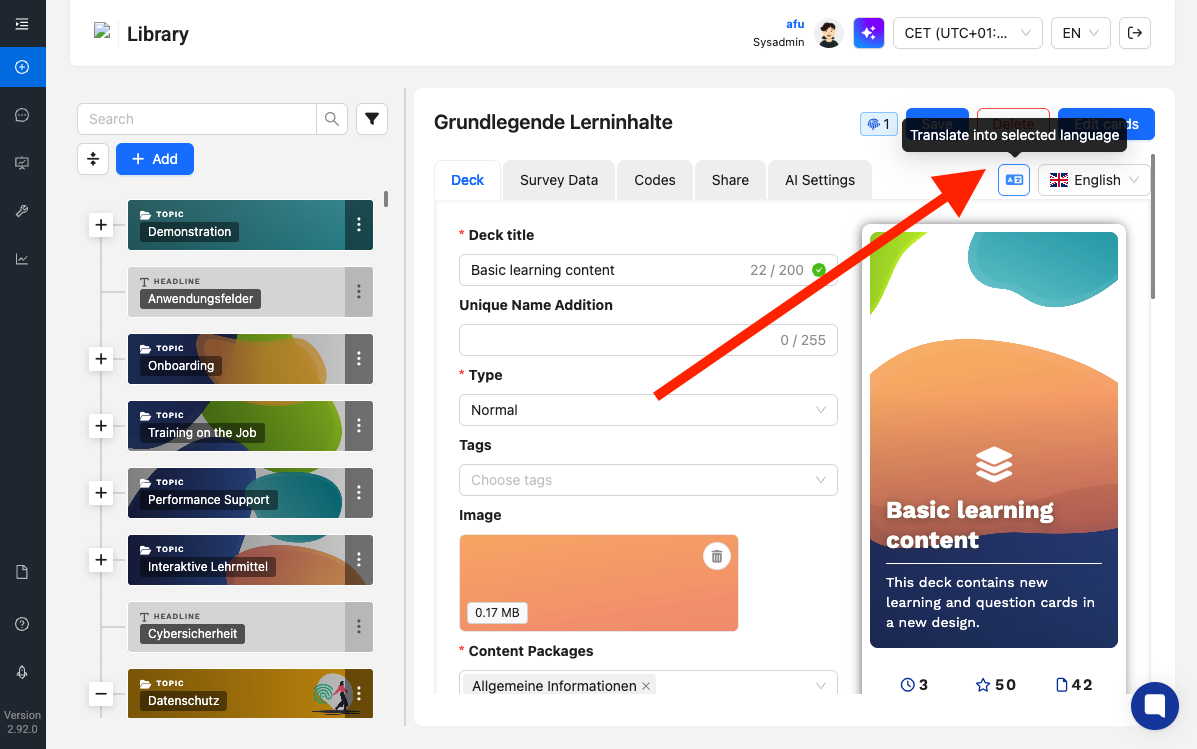
DeepL then automatically translates all texts from the original. You can now proofread and save the texts to publish the translation.
To translate flashcards, follow the same process as with other translations in the library. On the respective card, you’ll find the language selection in the top-right corner.
In the translated version, the original content is first carried over. You can now freely edit the texts or translate them with DeepL. All fields related to card settings cannot be edited.
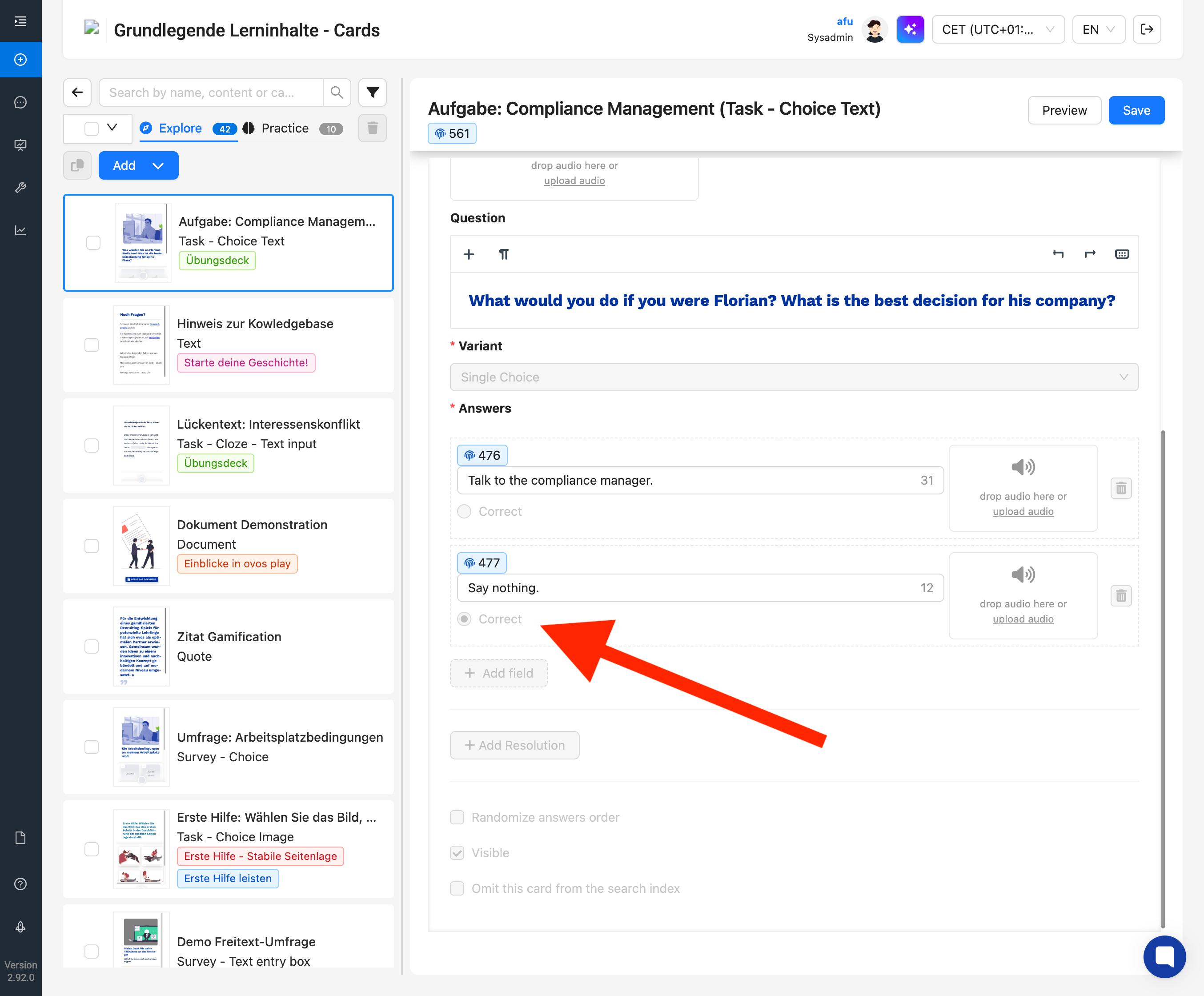
In the image below, you can see that selecting the correct answer isn't possible in translations.
During translation, you can also upload all media content as a translated version. This works particularly well for voice-overs in other languages. Our AI assistant supports you here in generating voice-overs in other languages as well.
To replace media content in the translation, simply upload your image or audio in translation mode. In the preview, you can view or listen to the respective media files.
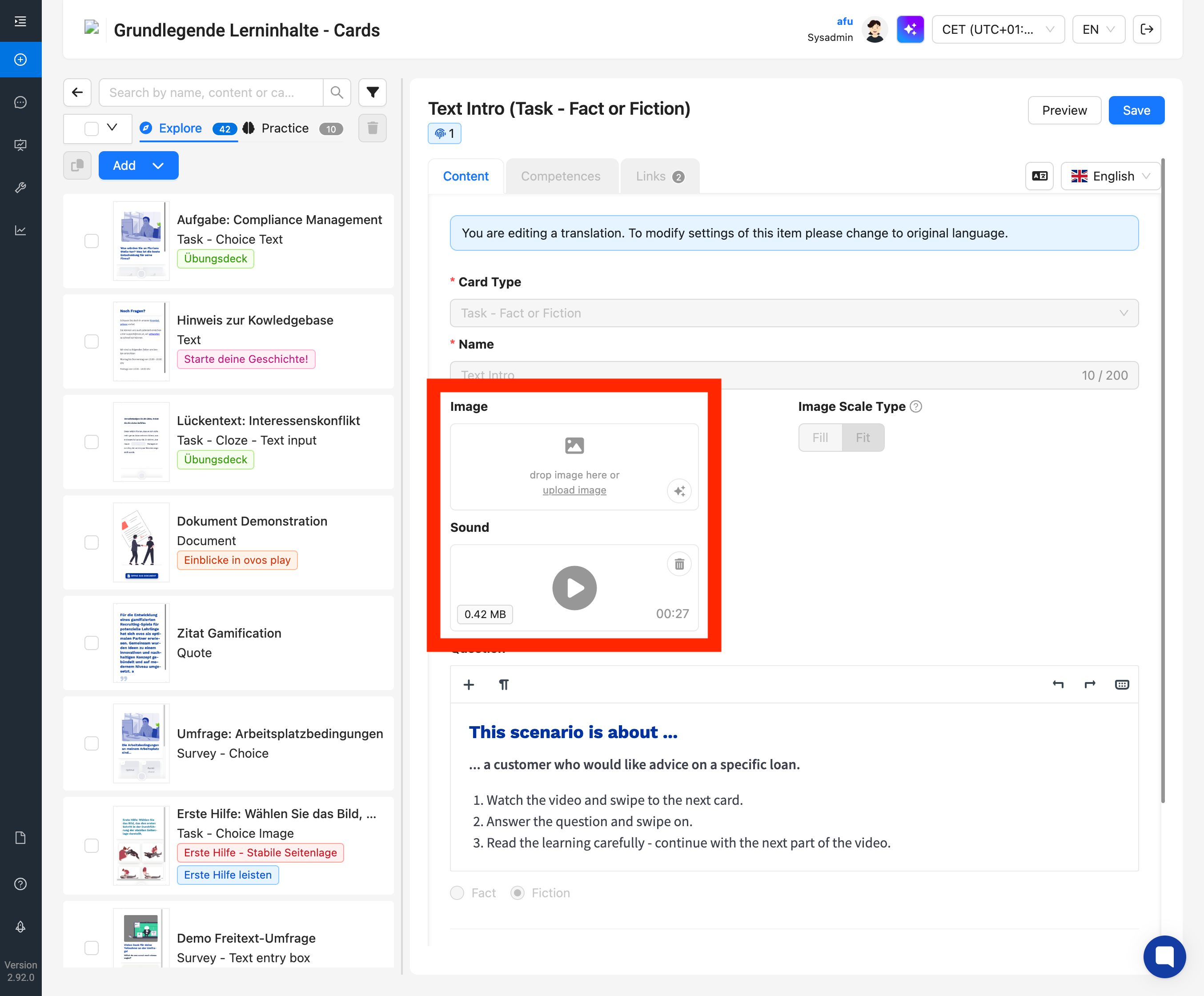
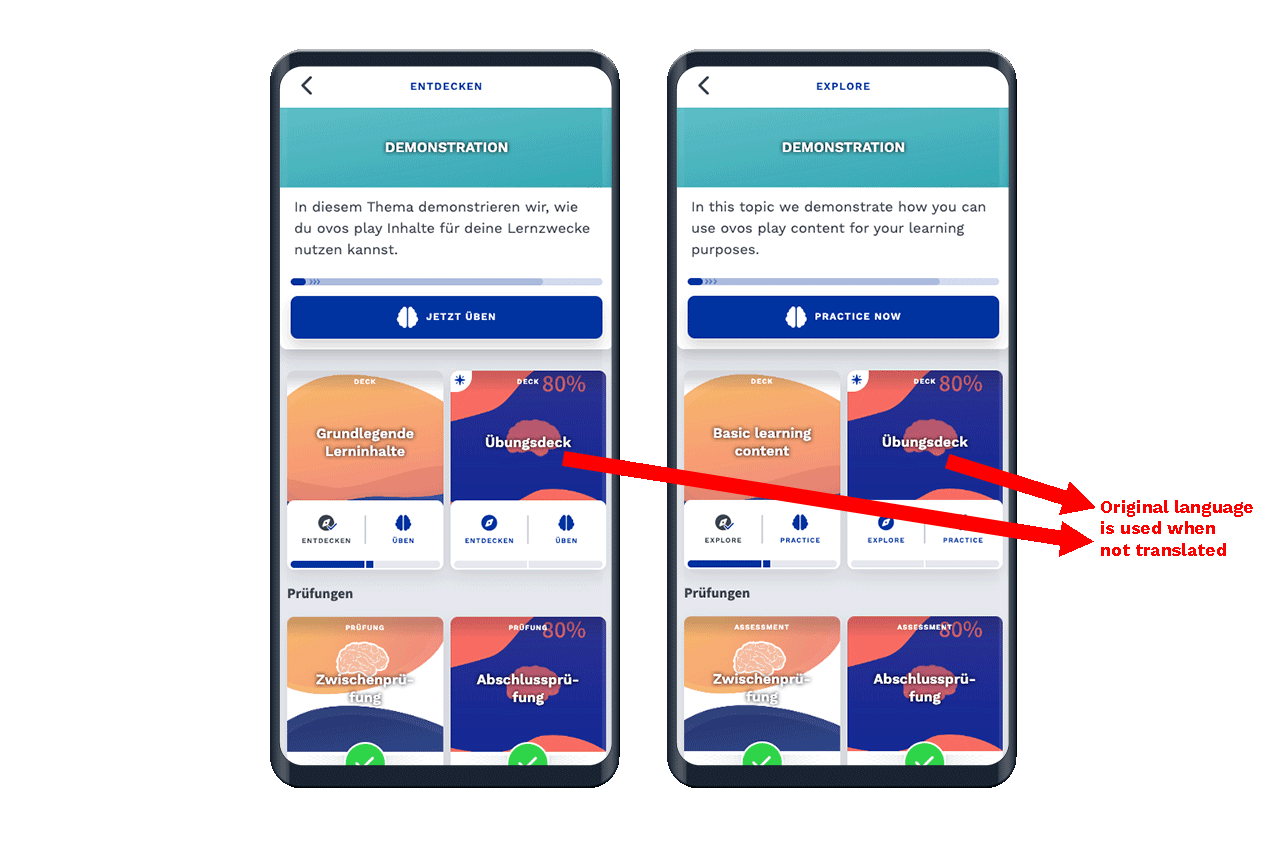
Without a custom translation, uploaded images, audio, or videos will use the original language.