
If you add images to learning content, you’ll find an info button on the image so you can view more details about it.
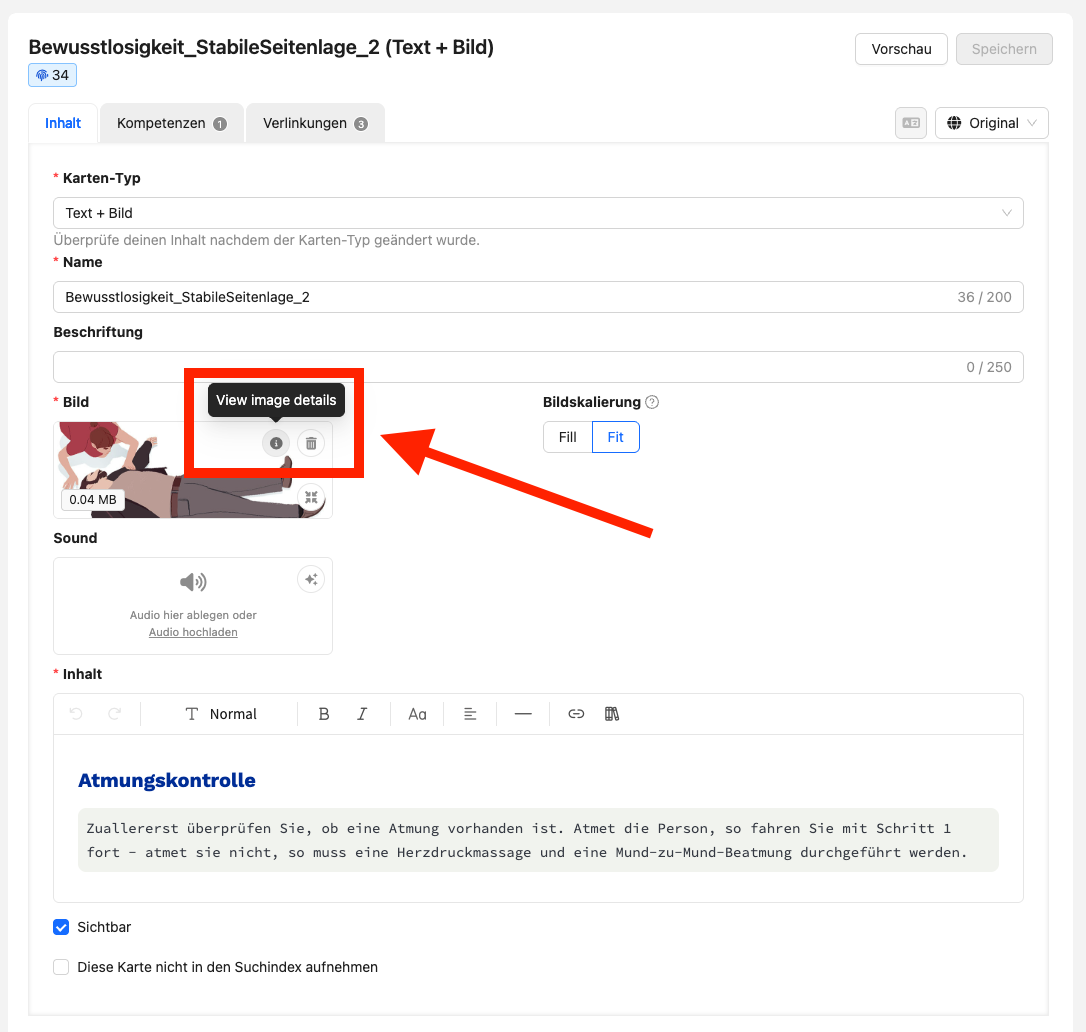
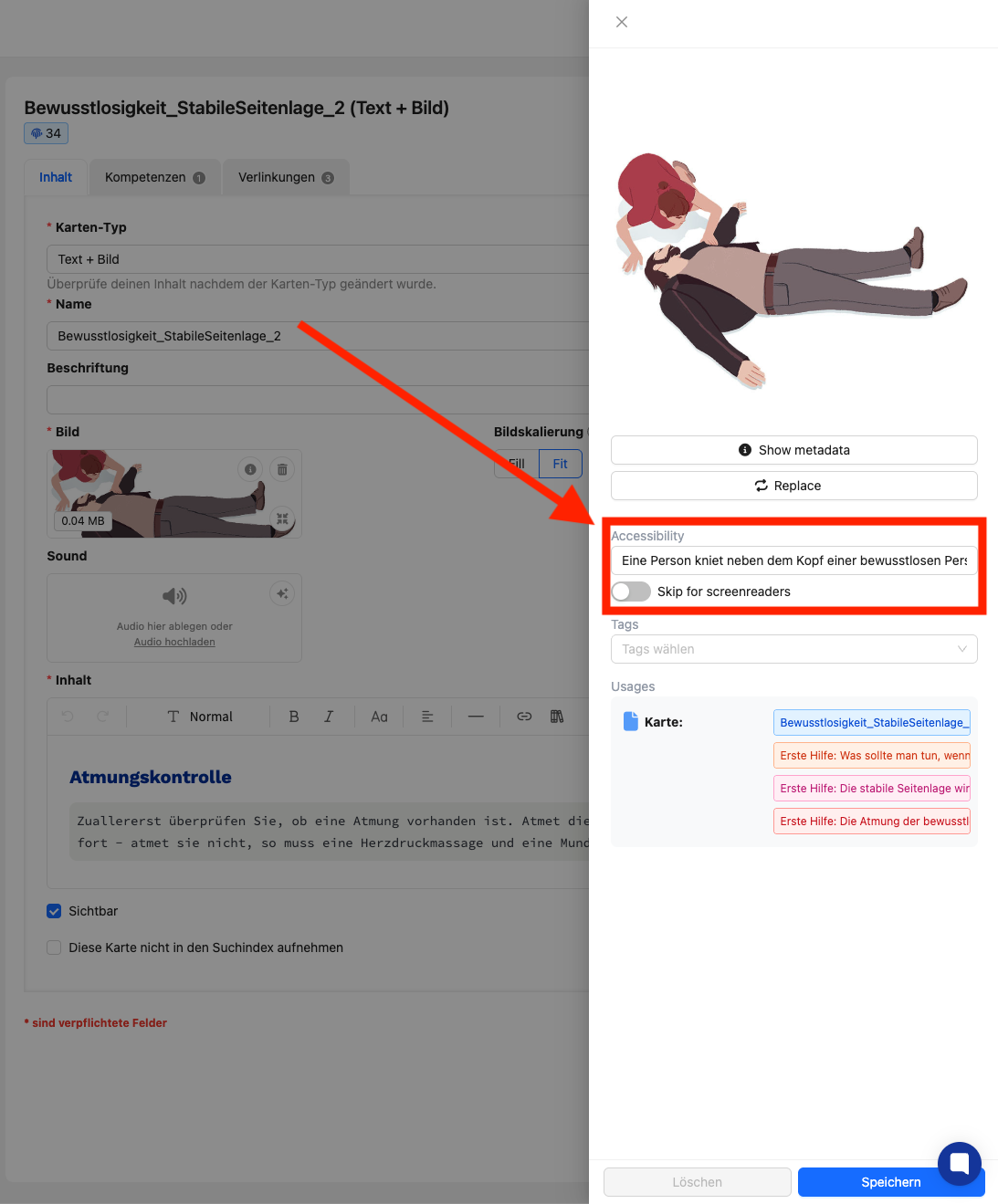
In the sidebar you’ll find metadata like the file type, who uploaded the image, and when. Below that you’ll also find the alternative text for users who use a screen reader. The alternative text is then read out automatically.
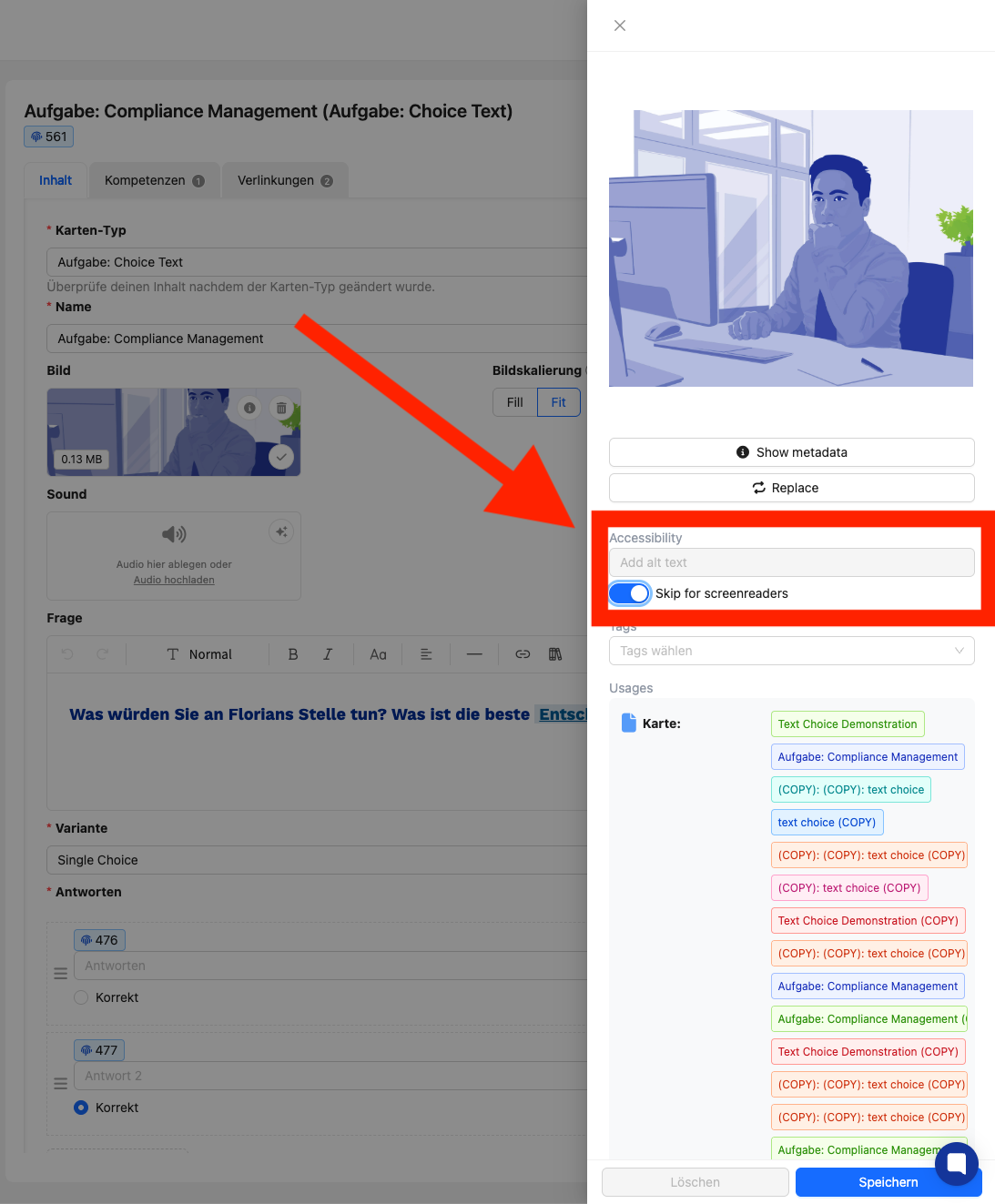
If your image only has an aesthetic or decorative purpose and doesn’t add any value to the written information, you can skip the alternative text for screen readers. This makes for a better experience and the screen reader starts reading the content of the learning card right away.
To do this, activate the Skip for screen readers button.
Save the changes to the image at the bottom of the sidebar.