In the media library you manage all media that you use in ovos play. Images, audio, video and documents are stored here.
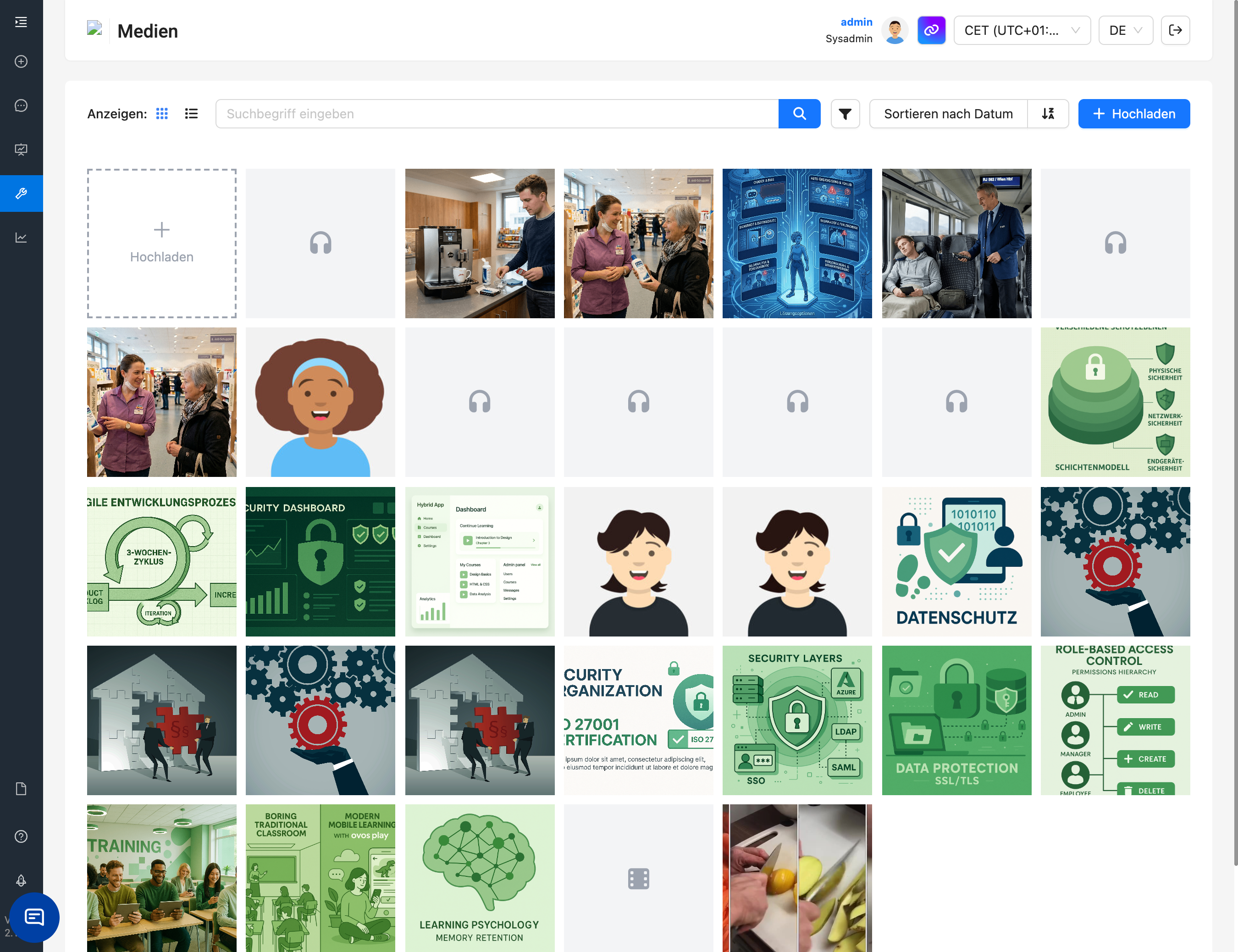
The media library shows you all uploaded files of your ovos play instance. You can switch between two views:
Grid view: Files are displayed as preview tiles. Move the mouse over the image and you’ll see file name and alt text.
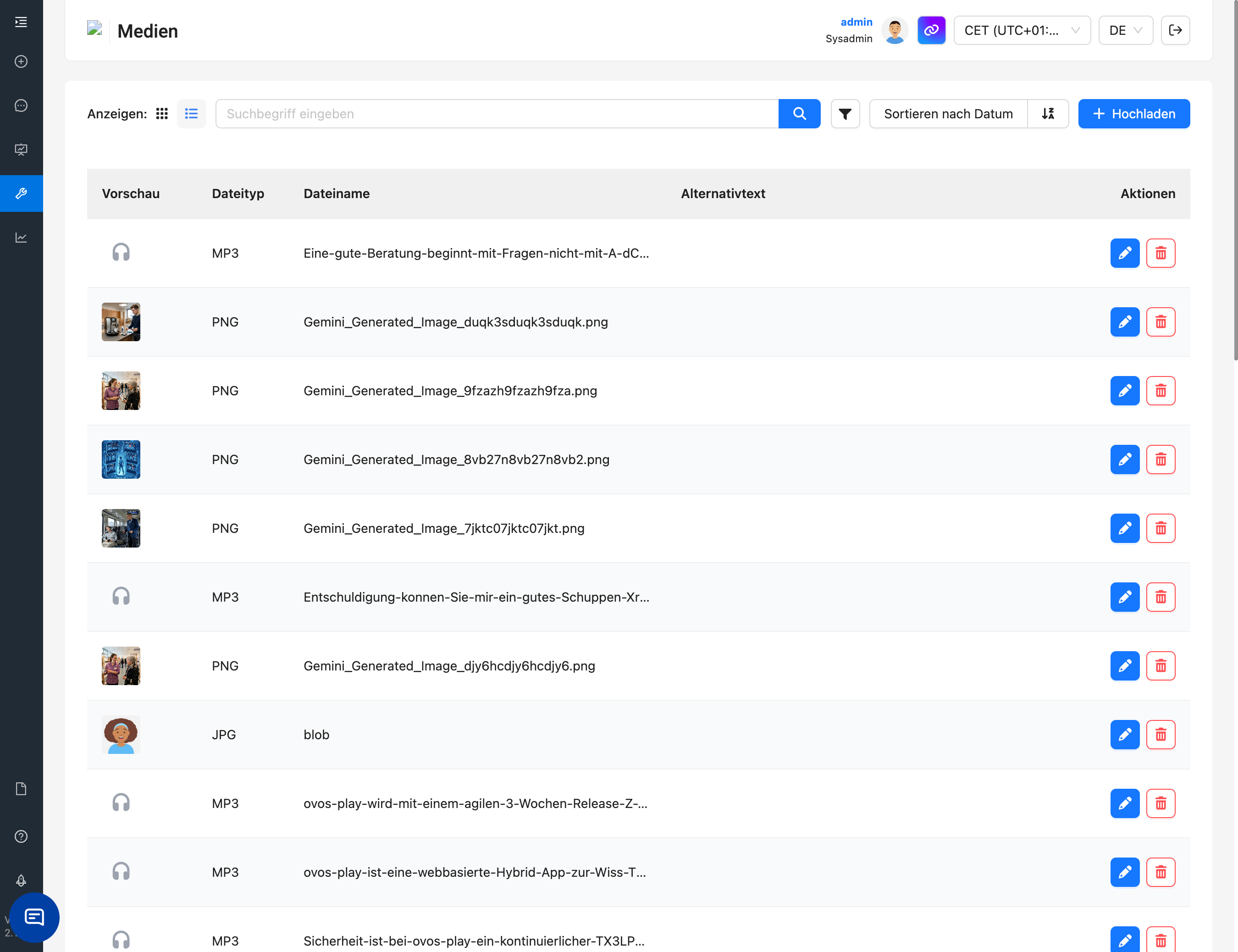
List view: Files are displayed in a table with preview, file type, file name, alt text and actions.
The selected view is saved and will still be there next time you visit.
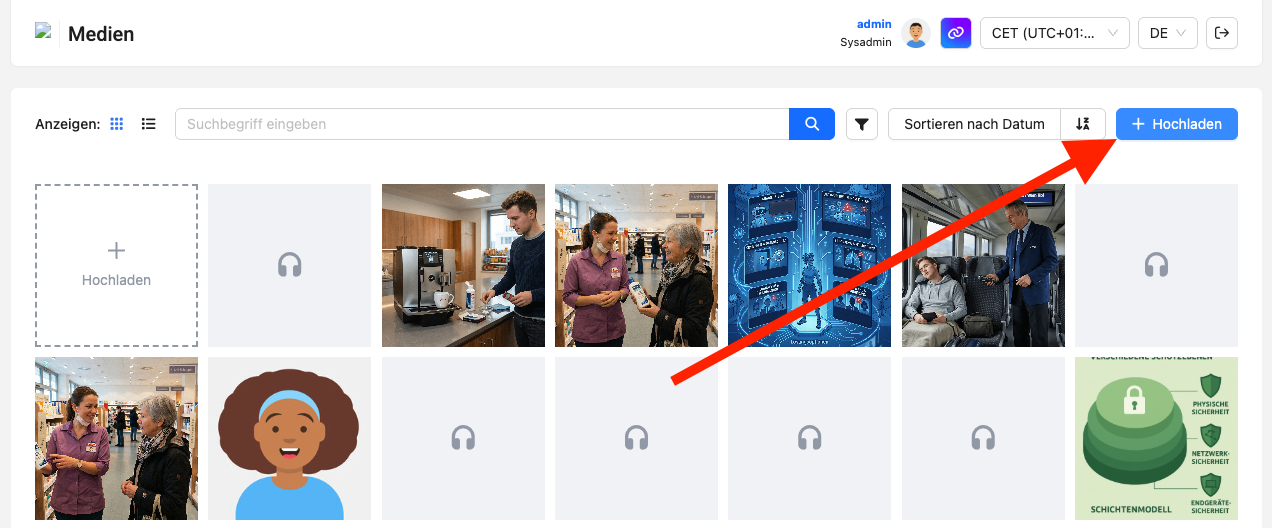
You have two options for this:
Click the upload button in the header and select one or more files.
Drag and drop files directly into the window – an overlay shows you that the upload area is active.
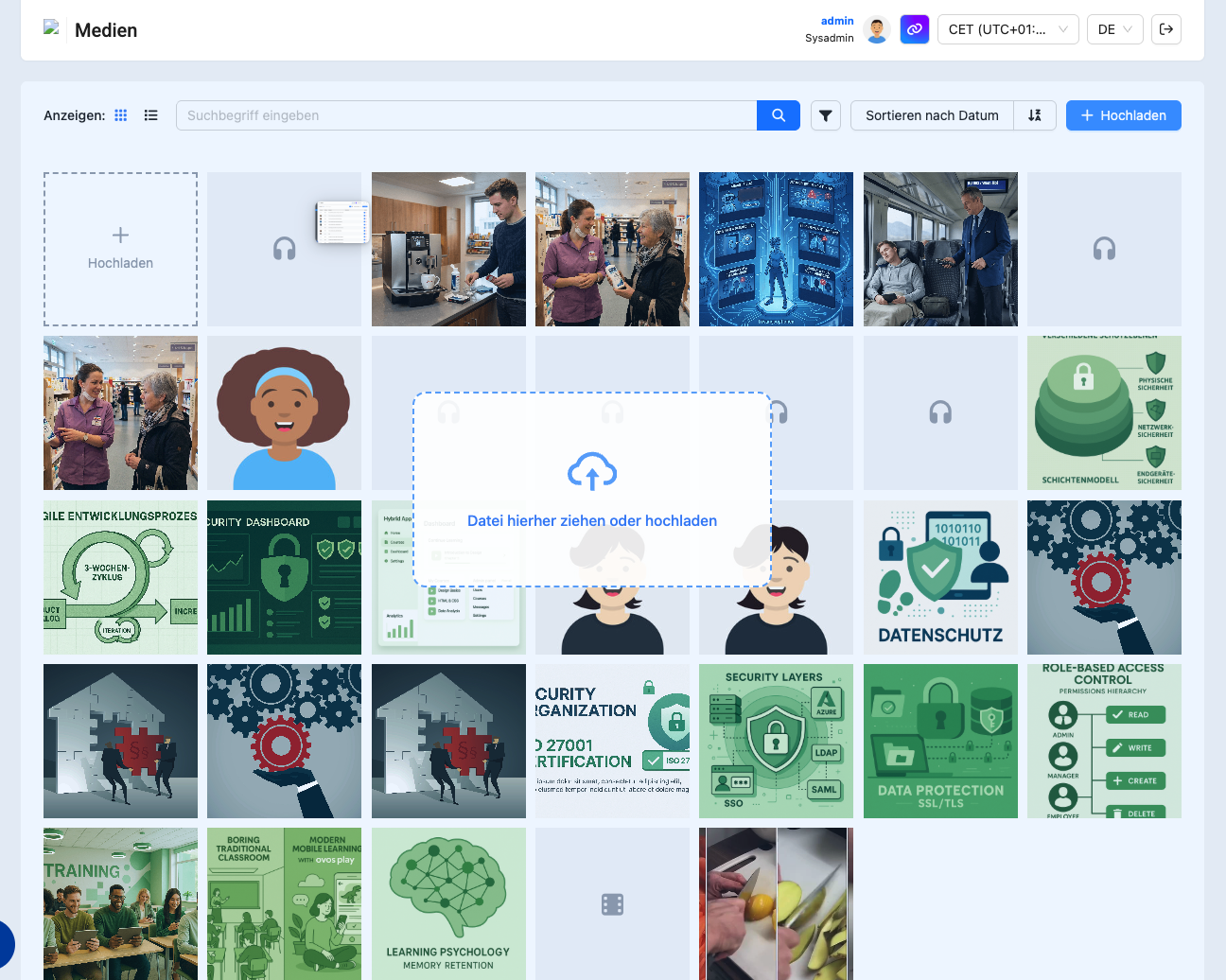
While the upload is running, you can see the progress for each file. You can cancel ongoing uploads and retry or discard failed uploads. If you leave the page while uploads are still running, you’ll be notified.
Supported file types for uploads to the media library:
Images: JPG, PNG, GIF, WebP, SVG
Audio: MP3, WAV, FLAC, AAC, OGG
Video: MP4
Documents: PDF
In the header you have several tools available:
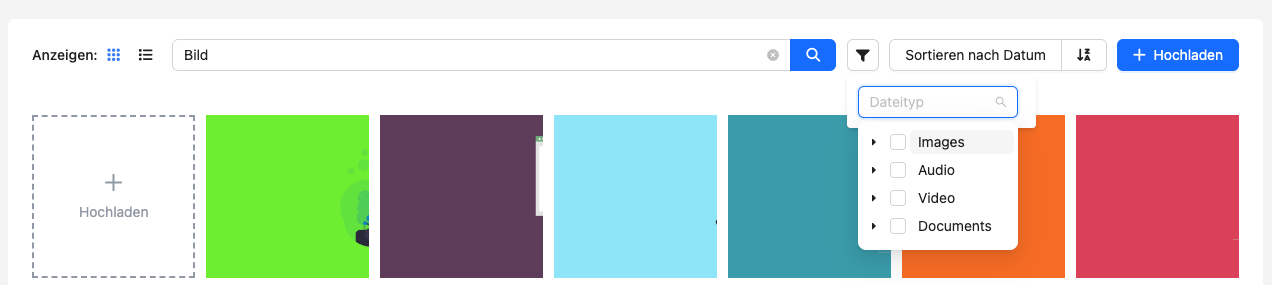
Search: Type a file name to instantly filter the results.
File type filter: Filter by images, audio, video, or documents. Multi-selection is also possible.
Sorting: Sort by creation date (default) or file name.
Click a file in the grid or list view to open the detail view on the right side.
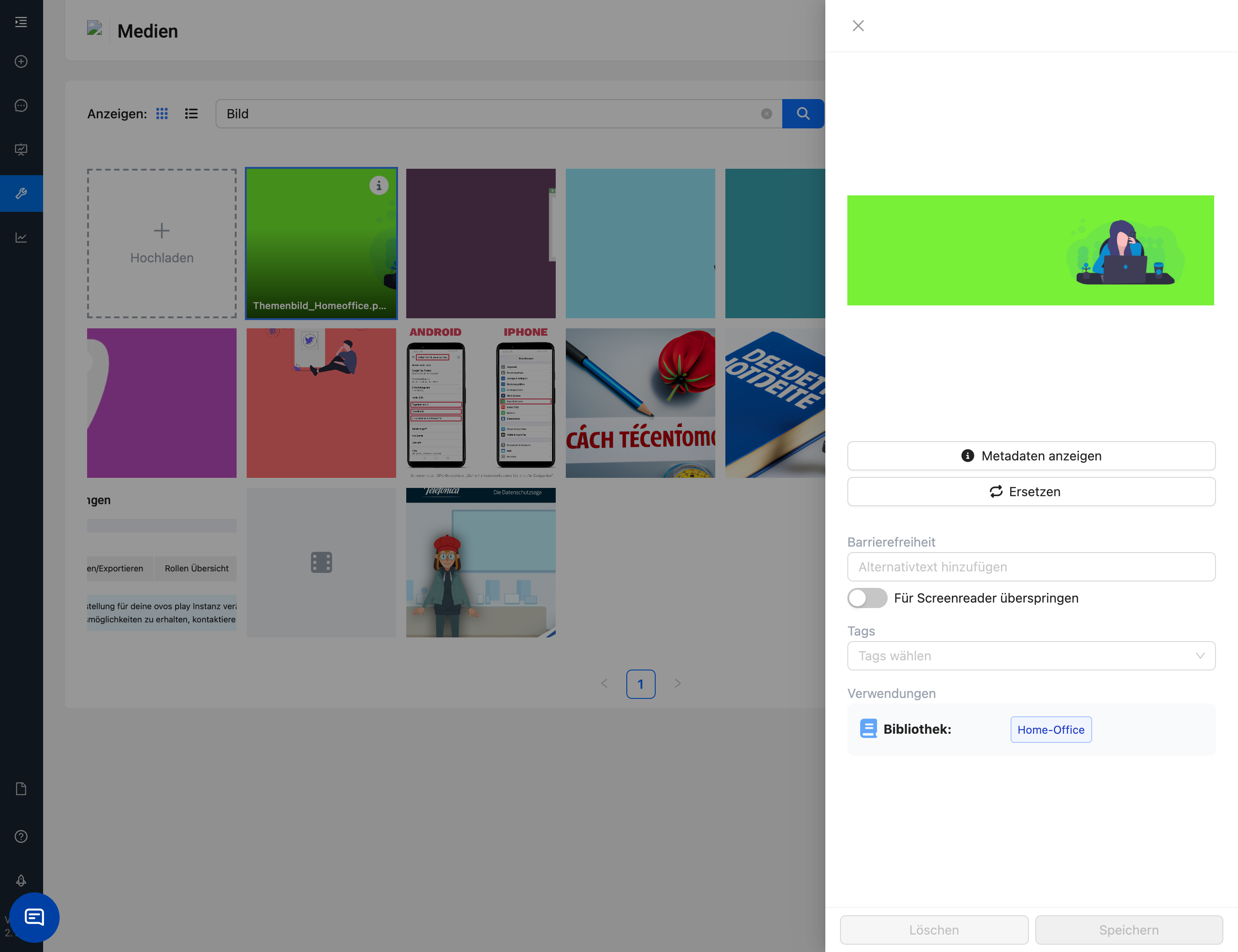
There you’ll find:
Preview
Depending on the file type, you’ll see a matching preview. Images as full view, audio and video with playback controls, PDFs embedded, and other documents with a file type icon.
File information
Via the info button you can see the most important metadata at a glance:
Name: Original file name
Uploaded by: Username of the person who uploaded the file
Uploaded on: Date and time
File type: File extension
File size: e.g. “2.5 MB"
Accessibility
Alt text: Describe the content of the image for screen readers and users with visual impairments. Good alt text explains what can be seen in the image.
Skip for screen readers: Only activate this option for purely decorative images that don’t add any real content value. The alt text will then be disabled so screen readers ignore the image.
Tags
Assign tags to organize your media by topic and find it again more easily.
Replace file
With the Replace button, you can replace a file with a new version. The new file is shown right away in the preview. Click Save to apply the change. All places that use this file are updated automatically.
In the lower area of the detail view, you’ll find the Usage section.
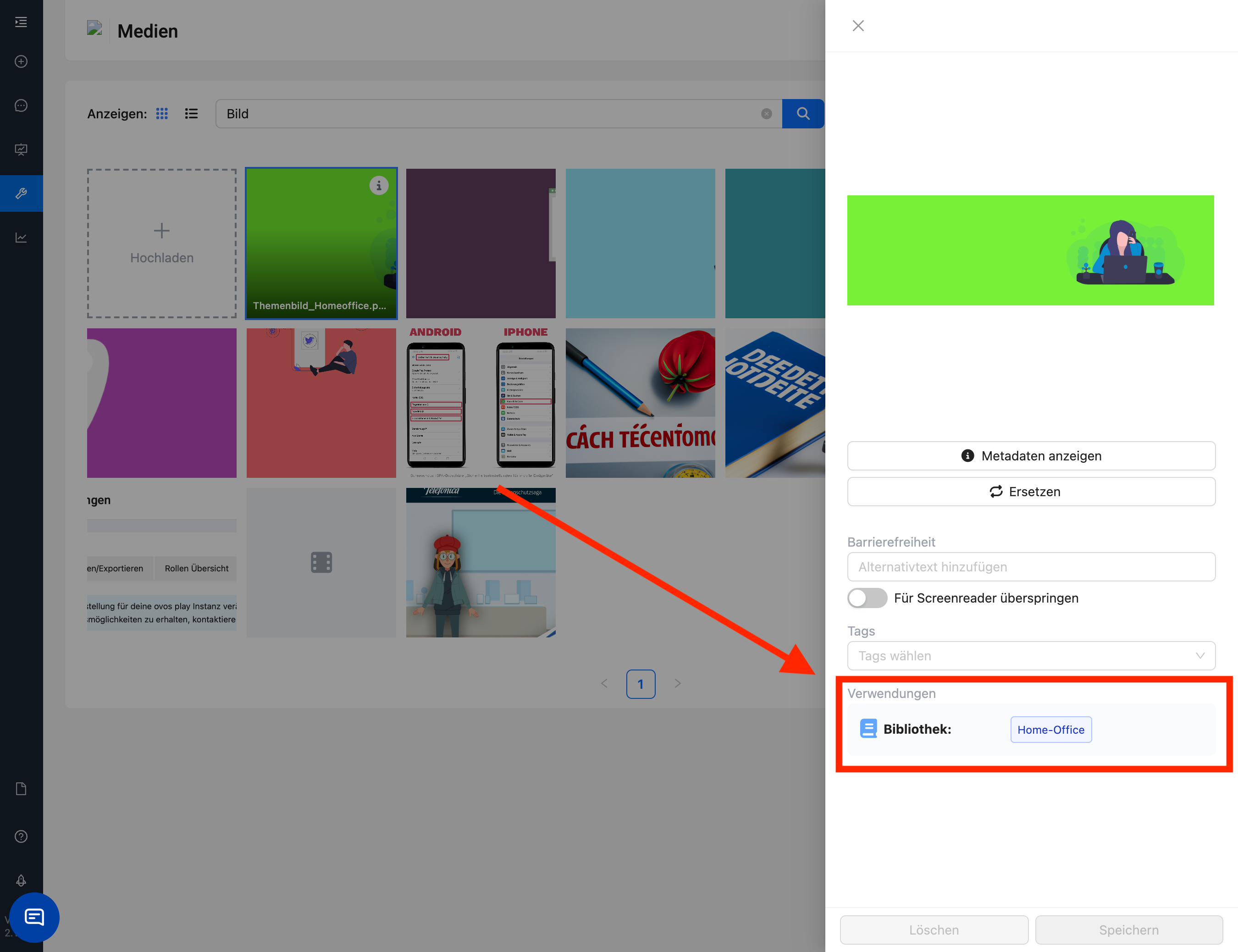
There you can see all content that uses this file, e.g. cards, decks, topics, etc. Every entry is a clickable link that takes you straight to the respective editor.
Yes, using the Delete button in the detail view or in the list view. Before the file is deleted, you’ll be asked to confirm.